
TL;DR: How to Manage GoDaddy DNS Records
DNS records control how your domain routes traffic, email, and other services. Misconfigured records can cause downtime and lost leads.
Key records to know: A (website IP), CNAME (aliases), MX (email), TXT (verification/security), and NS (nameservers).
Access your DNS in GoDaddy via Domain Portfolio → Manage DNS, and use the DNS Zone Editor to add, edit, or delete records.
Always double-check values, back up records, and understand TTL and propagation times to avoid issues.
Troubleshoot carefully, coordinate changes with hosting/email, and consider professional help if problems persist.
Your domain is your business online. And if your DNS records are wrong, it doesn’t matter how great your website is. Visitors won’t see it. Emails won’t deliver. Calls from potential customers might never reach you.
According to multiple hosting studies, nearly 40% of smallbusinessesexperience downtime or email issues because of misconfigured DNS. That’s nearly half of your potential customers slipping away without a single click or call.
I’ve seen it happen more times than I can count. Businesses invest in SEO, Google Ads, and content, only to lose leads because their domain records weren’t set up correctly. The problem isn’t complicated, but it’s easy to overlook.
The good news is that managing GoDaddy DNS records doesn’t have to be stressful. With the right guidance, you can control your domain, keep your website live, and ensure your emails land where they should. In this guide, I’ll show you exactly how to add, edit, and troubleshoot your DNS records, step by step. Just practical steps you can use today to make sure your business stays online, reachable, and professional.
If you are still new to GoDaddy as a platform, start with our blog on What Is GoDaddy and How Does It Work? so you understand how domains, hosting, email, DNS, SSL, and marketing tools fit together.
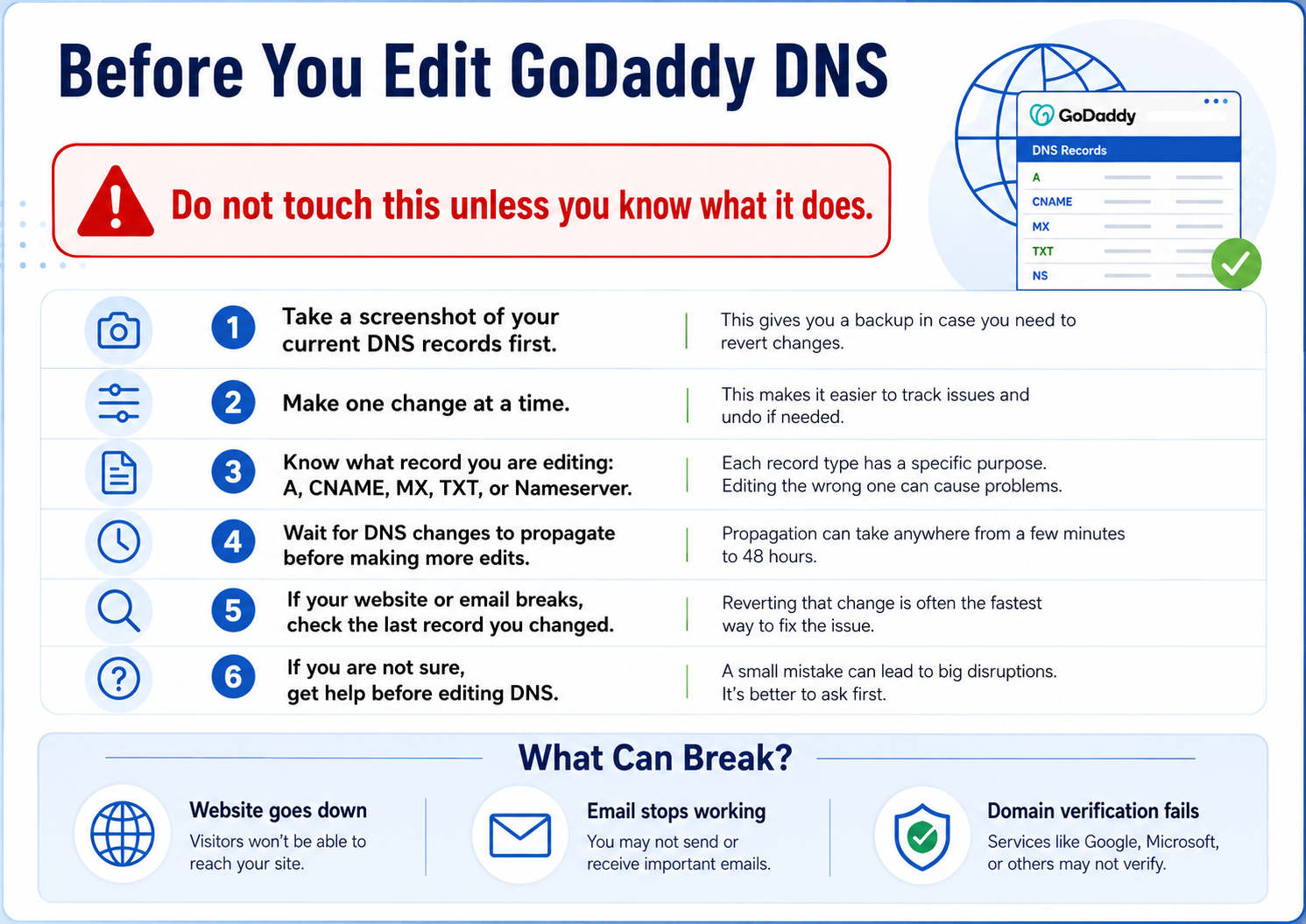
Before changing anything in GoDaddy DNS, slow down for a second. One wrong edit can take your website offline, break your email, or stop tools like Google Workspace, Microsoft 365, or Search Console from verifying your domain.
What Are DNS Records and Why They Matter
DNS records are like the instruction manual for your domain. Each record type tells the internet where to route traffic. Misconfigured DNS can cause downtime, email issues, or even loss of website visitors.
How DNS Works
When someone enters your domain in a browser, the DNS system checks its records to figure out where to send the request. Think of it like a phone book for the internet. If the number is wrong, the call does not go through.
Key DNS Record Types
Here are the main records you’ll work with:
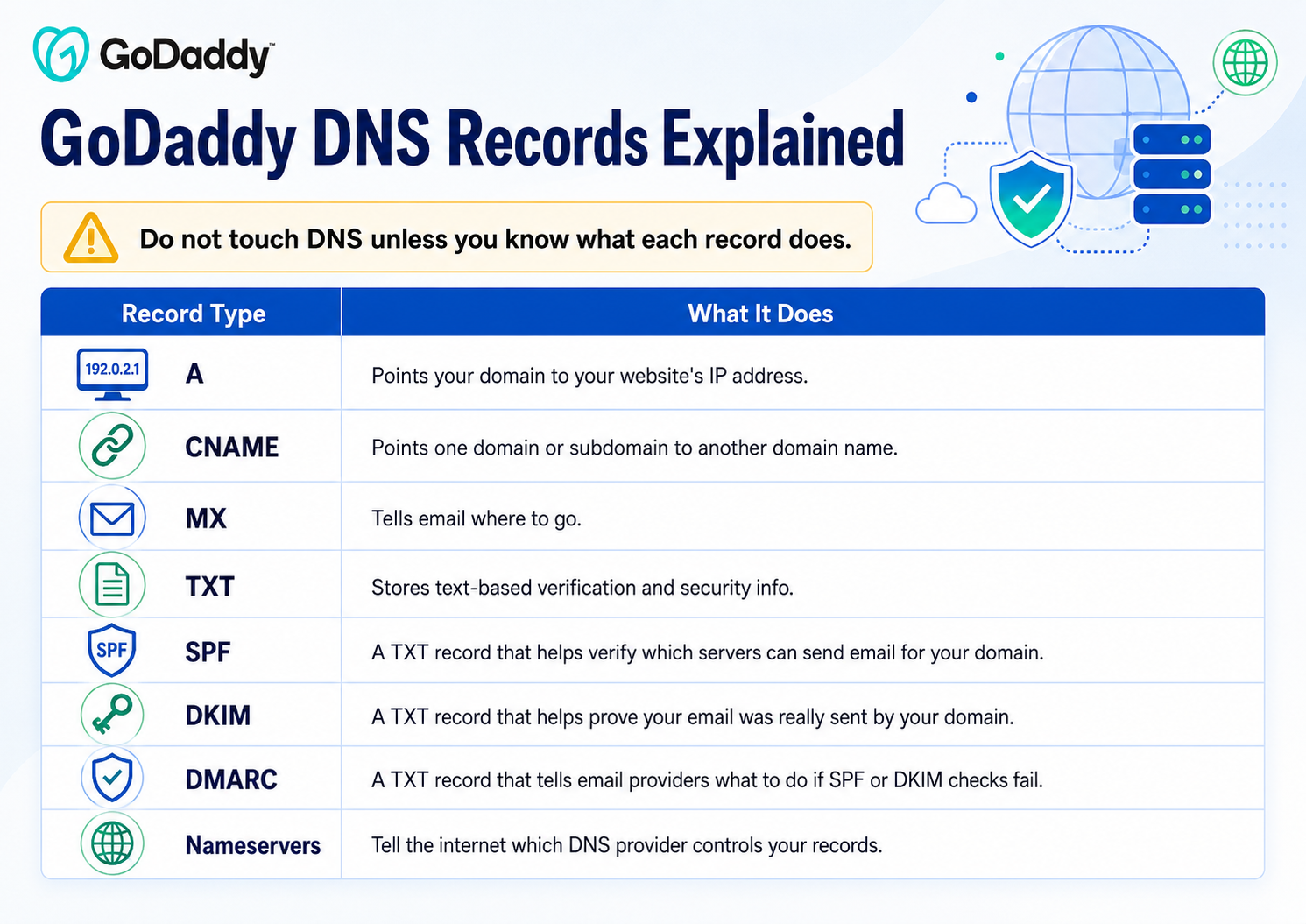
A Record: Points your domain or subdomain to a specific IP address.
CNAME Record: Points a subdomain to another domain name instead of an IP. Useful for aliasing.
MX Record: Directs email traffic to the correct email server.
TXT Record: Often used for verification, security protocols like SPF, or other custom data.
NS Record: Shows which nameservers are authoritative for your domain. Changing these affects all other DNS records.
Why Nameservers Matter
Nameservers tell the internet where to find your DNS records. If your nameservers point elsewhere, GoDaddy’s DNS management tools may not work for your domain. Always check where your domain’s nameservers are pointing before making changes. Nameservers also matter when you are moving a domain, changing platforms, or handing a domain to another person. Learn how to transfer your GoDaddy Domain to Another Person or Platform and what to check before you move anything.
Here is the simple version of what each GoDaddy DNS record does. You do not need to memorize all of this, but you should know which record controls your website, which record controls your email, and which records help with verification and email security.
Accessing Your GoDaddy DNS Management
Before you can add, edit, or delete records, you need to know where to find them.
Finding Your Domain
Log in to your GoDaddy account.
Navigate to your Domain Portfolio.
Click the domain you want to manage.
Navigating to DNS Management
Once in your domain settings:
Scroll down to the Additional Settings section.
Click Manage DNS.
This takes you to the DNS Zone Editor, where all your records live. From here, you can add, edit, or delete records as needed. If you are using GoDaddy for both your domain and website, learn How Does GoDaddy Website Builder Work and Should I Use It? It gives more context on how the website builder, hosting, SSL, and domain setup work together.
Understanding the DNS Zone Editor
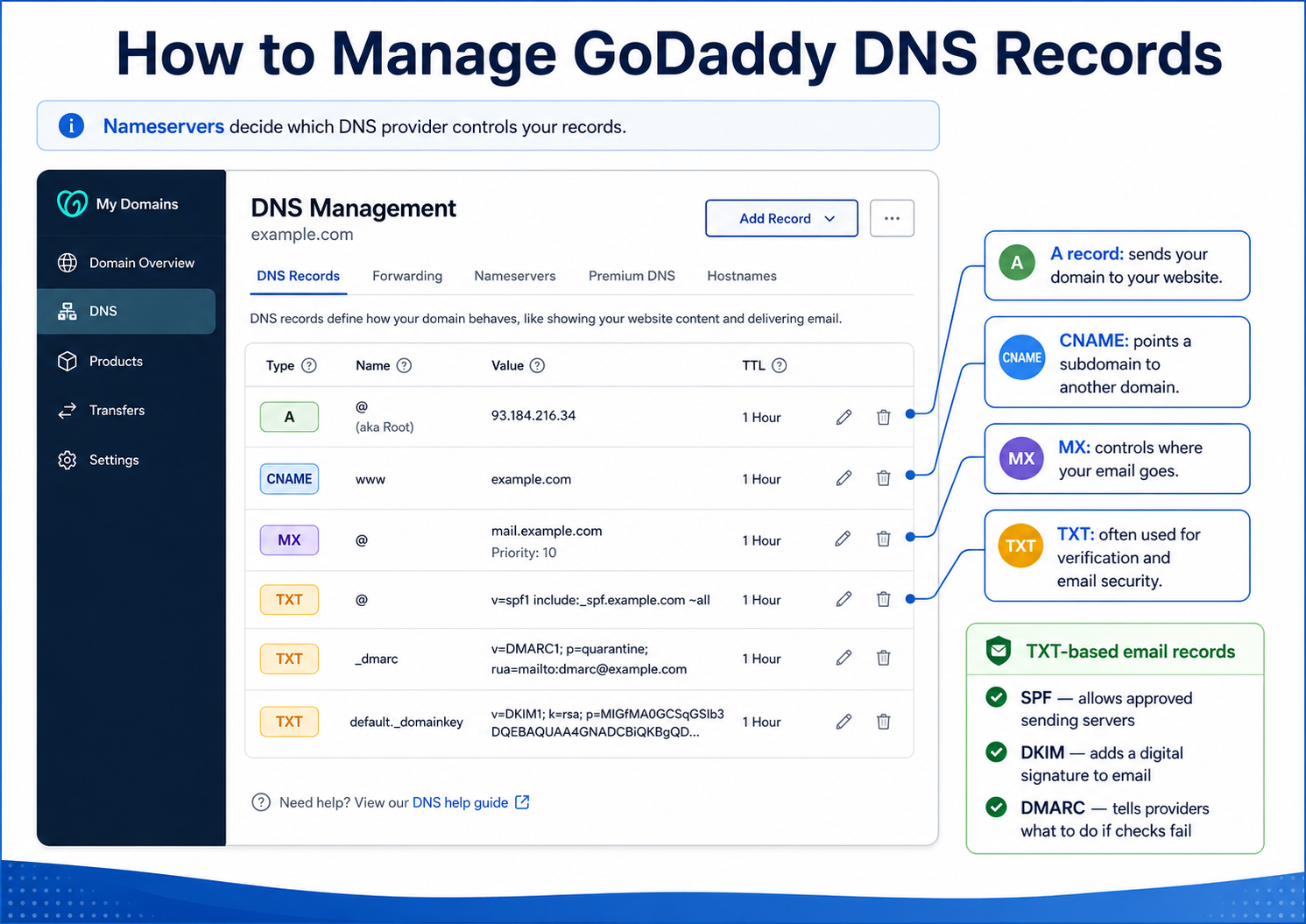
The DNS Zone Editor shows a list of all existing records, including A, CNAME, MX, TXT, and NS. Each record has fields for Name, Value, TTL (time to live), and sometimes additional options.
TTL and Propagation Time
TTL determines how long DNS records are cached by servers worldwide. A lower TTL propagates changes faster but may increase server requests. DNS changes can take anywhere from a few minutes to 48 hours to fully propagate.
How to Add DNS Records in GoDaddy
Adding records is simple once you know which type you need.
Adding an A Record
In the DNS Zone Editor, click Add.
Select A Record from the dropdown.
Enter the Name (use “@” for your root domain or a subdomain).
Enter the IP address you want the domain to point to.
Set TTL or leave it at the default.
Click Save.
A records are essential for connecting your website to your server. Without them, your site will not resolve correctly.
Adding a CNAME Record
CNAME records are typically used to alias one domain to another.
Click Add, then choose CNAME.
Enter the Name (subdomain) and the Value (domain you want it to point to).
Set TTL and save.
CNAMEs are handy for pointing subdomains like blog.yoursite.com to a hosted service like WordPress or Shopify. If you are deciding whether to keep your site on GoDaddy or move to a more flexible setup, our blog about GoDaddy vs WordPress Hosting breaks down the difference between a simple beginner platform and a more customizable website system.
Adding MX and TXT Records
MX records route email to the correct servers. TXT records verify domain ownership or add security rules like SPF or DKIM. If you are setting up a business email for the first time, learn How to Set Up a Professional Email Address with GoDaddy, which walks through how to create and connect an email address using your domain.
Click Add, select MX or TXT.
Enter the required information (priority, server, or text value).
Save and wait for propagation.
Best Practices When Adding Records
Double-check values to avoid downtime.
Document changes in case you need to revert them.
Keep TTLs reasonable—shorter for frequent changes, longer for stable records.
Editing Existing DNS Records
Sometimes you need to update an IP address or server.
Editing A Records
In the DNS Zone Editor, find the A record you want to change.
Click the pencil icon or Edit.
Update the IP address or Name as needed.
Save changes.
Editing Other Record Types
The process is similar for CNAME, MX, and TXT records. Always confirm the new value is correct before saving.
Avoiding Common Mistakes
Don’t change nameservers unless necessary.
Avoid deleting essential records unless you know exactly what they do.
A lot of GoDaddy problems come from small settings that get changed without a clear plan. Some Common GoDaddy Mistakes can break websites, email, SEO, and billing.
Make one change at a time and verify it works before proceeding.
Deleting DNS Records
Deleting records is sometimes necessary but must be done carefully.
When to Delete a Record
It’s no longer in use.
You’re consolidating services or moving hosting.
It’s conflicting with other records.
How to Delete Records
Locate the record in the DNS Zone Editor.
Click Delete.
Confirm the deletion.
What Happens After Deletion
Once deleted, the record no longer routes traffic. Allow for propagation, and monitor your site and email to ensure everything continues working correctly.
Once you are inside the GoDaddy DNS dashboard, you will usually see a table with record types, names, values, and TTL settings. The exact layout may change over time, but the basic idea is the same: each row controls a different part of your domain setup.
Troubleshooting Common GoDaddy DNS Issues
Even with careful management, issues can arise.
Why DNS Options May Be Greyed Out
Your nameservers may point to a different provider.
The domain is part of a locked account or inherited settings.
DNS Management Issues with External Nameservers
If your domain uses non-GoDaddy nameservers, DNS changes must be made at the provider listed in the NS records.
Slow DNS Propagation
Changes can take up to 48 hours to propagate globally. Use tools like whatsmydns.net to check the status across locations.
Resetting DNS Records
GoDaddy allows you to reset DNS records to default values if needed. This is useful after migrations or major configuration errors.
Advanced Tips for Managing GoDaddy DNS
Back Up Your DNS Settings: Screenshot your records before making big changes.
For more practical cleanup ideas inside GoDaddy, read our blog on 10 GoDaddy Hacks Every Business Owner Should Know, which covers simple ways to improve backups, SEO settings, security, speed, and account organization.
Organize Multiple Subdomains: Label and manage consistently for easier updates.
Use TTL Strategically: Lower TTL for testing, higher for stable production.
Coordinate Changes: Align DNS updates with hosting or email providers to avoid downtime.
Conclusion: Manage GoDaddy DNS Records
Managing your GoDaddy DNS records doesn’t have to feel like a guessing game. When your records are correctly configured, your website runs smoothly, emails reach their destinations, and your online presence stays professional.
Throughout this guide, we covered the essentials: understanding what DNS is, the key record types you’ll work with, how to access and navigate GoDaddy’s DNS management, and the step-by-step process to add, edit, or delete records safely. We also explored common issues, troubleshooting tips, and advanced practices to keep everything organized and efficient.
The key takeaway is this: DNS is the backbone of your online business. Small mistakes can cause big problems, but careful management and best practices ensure your website and email function reliably. Take control of your domain today, double-check your records, and implement the strategies outlined here. By doing so, you’ll protect your business, prevent downtime, and make sure your online presence works as hard as you do.
DNS management might seem technical at first, but once you understand the basics and follow the right steps, it’s entirely manageable and worth mastering.
FAQs About Managing GoDaddy DNS Records
How long do DNS changes take?
Changes typically propagate in minutes to hours, but can take up to 48 hours globally.
Can I manage DNS if nameservers are not with GoDaddy?
No. If nameservers point elsewhere, DNS changes must be made with the provider listed.
What happens if I delete the wrong record?
Deleting critical records can break your website or email. Always back up and double-check before deleting.
Can I reset DNS to default?
Yes, GoDaddy provides a reset option in the DNS Zone Editor.
Can GoDaddy help with DNS troubleshooting?
Yes, their support team can assist with questions and common issues.
Does Schulze Creative manage DNS for clients?
Yes. We help small businesses configure and maintain their DNS records to ensure websites and email run smoothly.
Do you focus on DNS optimization?
Absolutely. We optimize TTL, remove conflicts, and implement best practices to improve performance and reliability.
Do you assist businesses with GoDaddy specifically?
Yes, we have extensive experience managing GoDaddy domains and DNS for service-based and small businesses.
Can you help recover from DNS errors?
Yes. We can restore DNS records and troubleshoot issues to minimize downtime.
